
Overview
A Udemy course can have more than one instructor, and co-instructors can be added from Course Settings in the course management dashboard.
Before adding co-instructors to your course, please read our Rules and Guidelines for managing co-instructor relationships at this link.
Adding a Co-Instructor to Your Course
- From the Course Management page, click the course settings gear icon at the top right and scroll down to Instructors.
- Enter the email address of your co-instructor and click Add to see their name appear in the Instructors list (Note: Your co-instructor must already have a Udemy account in order for you to add them to the course).
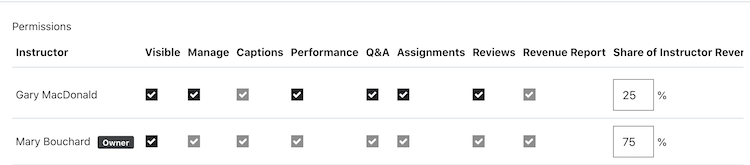
- Grant permissions to the new co-instructor via the checkboxes in each column, and assign a revenue share if you are adding the co-instructor to a paid course. See below for more details on each permission. Any co-instructor with the Manage permission checked will have the ability to add co-instructors to the course.
- Click Save.
Permissions
Visible: Checking the visible box means that an instructor will be publicly listed as an instructor for the course to students. Their profile picture and name will appear wherever the course is visible on Udemy. Students will be able to send a message to this instructor when deciding to purchase the course or taking the course. Instructors must be listed as visible in order to send promotional emails and educational announcements for the course, as well as respond in the Q&A.
Manage: A co-instructor with the Manage permission can modify course content and settings. They have full visibility and editing access to all course management functions, including the ability to upload and delete lectures, make changes to how the course displays in the marketplace, and create coupons for the course.
Captions: Instructors with this permission enabled can edit, upload and disable closed captions for the course. Please note that instructors with the Manage permission enabled will automatically receive the Captions permission.
Performance: instructors with this permission enabled can access applicable data and information related to that course in their Performance tabs.
Q&A: This permission controls whether visible instructors can view and answer questions from students in the instructor Q&A dashboard.
Reviews: Instructors with the Reviews permission will be able to view and respond to student course reviews in the Reviews section of the Instructor Dashboard (please note: in order for an instructor to respond to reviews, they must also be categorized as a visible instructor).
Assignments: Instructors who are enabled with the Assignments permission will receive notifications when students submit assignments, and will be able to provide feedback for them if they wish.
Revenue Report: If co-instructors are assigned a revenue share (above 0%), they will automatically have permission to view the Revenue Report, which details student purchases. This permission cannot be toggled off. The co-instructor will need to earn revenue from the course before they can access the revenue report.
Revenue Share: For paid courses, you can assign a revenue share to co-instructors. Once an instructor is designated to receive a revenue share, they will have access to the Revenue Report for all new purchases of the course, and will see their share generated in the column “Your Revenue” on the report.
Only co-instructors who are approved premium instructors can receive a revenue share greater than 0%. The share you assign will determine the proportion of the total instructor share they receive. The sum of all instructor shares must add up to 100%.
Course Owner
The original course creator is considered the ‘owner’ of the course and their access cannot be removed. They will automatically have the Manage permission and this cannot be toggled off.
Only the course owner is required to complete the instructor verification process and submit a test video in order for the course to be published onto the marketplace.
Teaching Assistants
Instructors who are not marked as Visible in the course, but who do have permissions checked for Q&A will display with a Teaching Assistant designation whenever they reply to student questions in the course Q&A.
The Teaching Assistant designation is intended to give students additional context about these co-instructors, since they are not otherwise visible in the course.

Removing a Co-Instructor
Co-instructors can be removed from a course by clicking the Trash Bin icon in the far right column of the Instructors list. If a course instructor has the Manage permission active, they will have the ability to remove co-instructors, including themselves. The course owner, however, cannot be removed from a course.
Comments
0 comments
Please sign in to leave a comment.